ATTENTION! ALL THIS GUIDE IS PROVIDED BY theCW.
TheCW very kindly provided this Neovim Config guide. However it is for Colemak user. For most nomal users, like me, need a normal keyboard version. So here comes this one.
I have some modification to his guide, and the modificaitons are mainly about keyboard shortcuts.
I make it just for myself,or maybe someone else who needs it as well.
I highly recommand you to visit and support the original author of the this post here (https://github.com/theniceboy/nvim).
And you can find my nvim config here (https://github.com/zququ/nvim-config-for-mac).
The Ultimate NeoVim Config of Normal Users
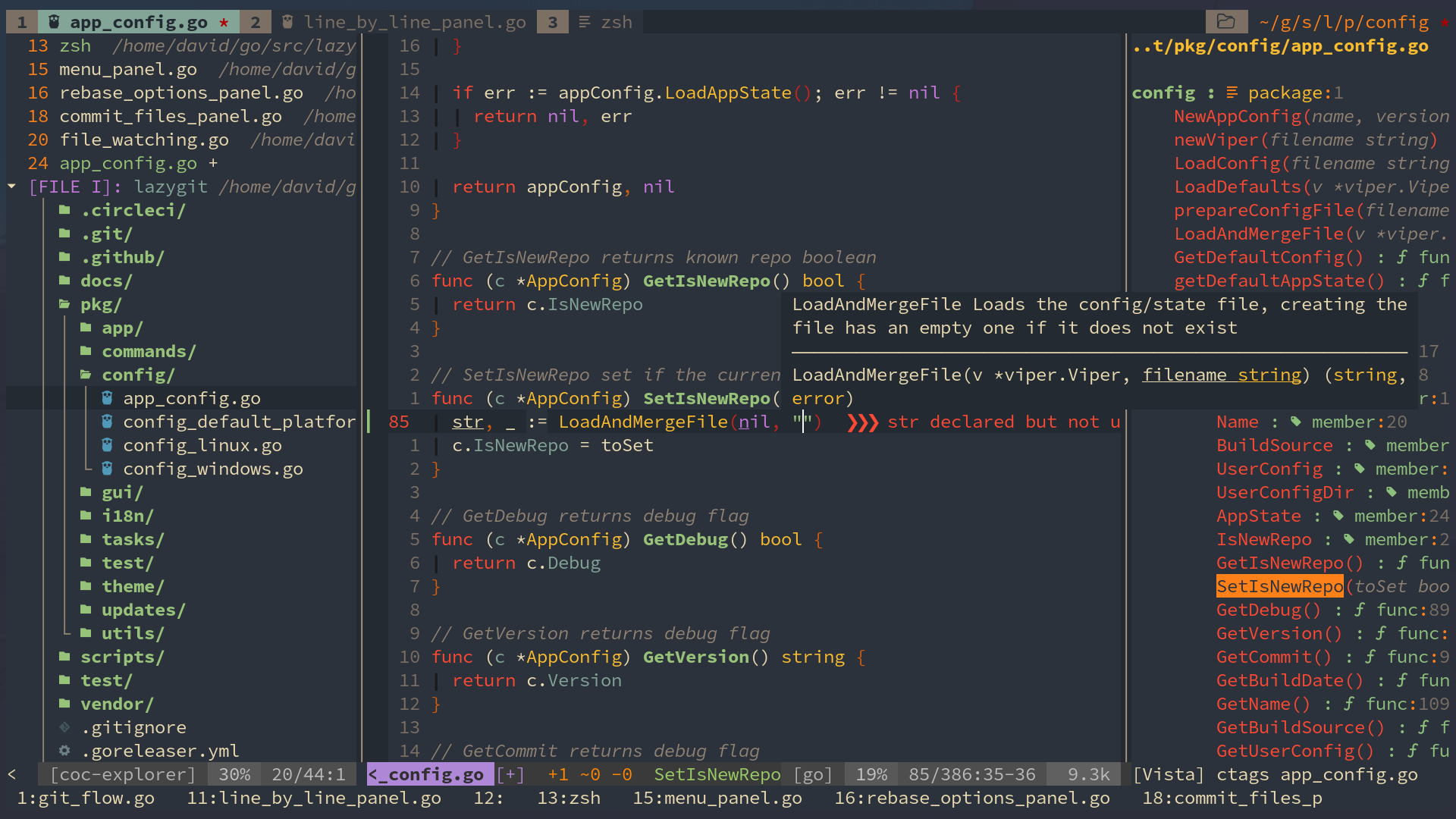
Please DO NOT just copy this configuration folder without really looking at it! Please, at least, read this README file!
- After Installation, You Need To
- After Installation, You Might Want To
- Keyboard Shortcuts
- Plugins Keybindings (Screenshots/GIF provided!)
- Custom Snippets
- Some Weird Stuff
After Installation, You Need To
- Install
pynvim(pip) - Install
nodejs, and donpm install -g neovim - Install nerd-fonts (actually it’s optional but it looks real good)
After Installation, You Might Want To
First of all
- Do
:checkhealth
For Python Debugger (via vimspector)
- Install
debugpy(pip)
Config Python path
- Well, make sure you have python
- See
_machine_specific.vim
For Taglist:
- Install
ctagsfor function/class/variable list
For FZF
- Install
fzf - Install
ag(the_silver_searcher)
And also…
- Install
figletfor inputing text ASCII art - Install
xclipfor system clipboard access (Linuxandxorgonly)
Keyboard Shortcuts
1 Basic Editor Features
1.1 The Most Basics
u : switchs to INSERT : mode (same as key i in vanilla vim)
Q : quits current vim window (same as command :q in vanilla vim)
S : saves the current file (same as command :w in vanilla vim)
IMPORTANT
Since the i key has been mapped to u, every command (combination) that involves i should use u instead (for example, cuw should be cuw).
1.2 Remapped Cursor Movement
| Shortcut | Action | Equivalent |
|---|---|---|
i |
Cursor up a terminal line | k |
k |
Cursor down a terminal line | j |
j |
Cursor left | h |
l |
Cursor right | l |
I |
Cursor up 5 terminal lines | 5k |
K |
Cursor down 5 terminal lines | 5j |
0 |
Cursor to the start of the line | 0 |
9 |
Cursor to the end of the line | $ |
Ctrl u |
Move the view port up 5 lines without moving the cursor | Ctrl y |
Ctrl e |
Move the view port down 5 lines without moving the cursor | Ctrl e |
e |
Move to the end of this word | e |
W |
Move cursor five words forward | 5w |
B |
Move cursor five words forward | 5b |
1.3 Remapped Insert Mode Keys
| Shortcut | Action |
|---|---|
A |
Move cursor to the end of the line |
U |
Move the character on the right of the cursor to the end of the line |
1.4 Remapped Text Manipulating Commands in Normal Mode
| Shortcut | Action |
|---|---|
h |
undo |
< |
Un-indent |
> |
Indent |
SPACE SPACE |
Goto the next placeholder (<++>) |
1.5 Other Useful Normal Mode Remappings
| Shortcut | Action |
|---|---|
r |
Compile/Run the current file |
SPACE s c |
Toggle spell suggestion a |
SPACE d w |
Find adjacent duplicated word |
SPACE t t |
Convert every 4 Spaces to a tab |
SPACE o |
Fold |
SPACE - |
Previous quick-fix position |
SPACE + |
Next quick-fix position |
\ p |
Show the path of the current file |
SPACE / |
Create a new terminal below the current window |
1.6 Remapped Commands in Visual Mode
| Shortcut | Action |
|---|---|
Y |
Copy selected text to system clipboard |
2 Window Management
2.1 Creating Window Through Split Screen
| Shortcut | Action |
|---|---|
s i |
Create a new horizontal split screen and place it above the current window |
s k |
Create a new horizontal split screen and place it below the current window |
s j |
Create a new vertical split screen and place it left to the current window |
s l |
Create a new vertical split screen and place it right to the current window |
s v |
Set the two splits to be vertical |
s h |
Set the two splits to be horizontal |
s r v |
Rotate splits and arrange splits vertically |
s r h |
Rotate splits and arrange splits horizontally |
2.2 Moving the Cursor Between Different Windows
| Shortcut | Action |
|---|---|
SPACE + w |
Move cursor to the next window |
SPACE + j |
Move cursor one window left |
SPACE + l |
Move cursor one window right |
SPACE + i |
Move cursor one window up |
SPACE + k |
Move cursor one window down |
2.3 Resizing Different Windows
Use the arrow keys to resize the current window.
2.4 Closing Windows
| Shortcut | Action |
|---|---|
Q |
Close the current window |
SPACE q |
Close the window below the current window. (The current window will be closed if there is no window below) |
3 Tab Management
| Shortcut | Action |
|---|---|
t u |
Create a new tab |
t j |
Go one tab left |
t l |
Go One tab right |
t m j |
Move tab left |
t m l |
Move tab right |
4 Terminal Keyboard Shortcuts
This works after <SPACE>/ (after opening the terminal)
| Shortcut | Action |
|---|---|
Ctrl n |
Escape from terminal input mode |
Plugins Keybindings (Screenshots/GIF provided!)
AutoCompletion
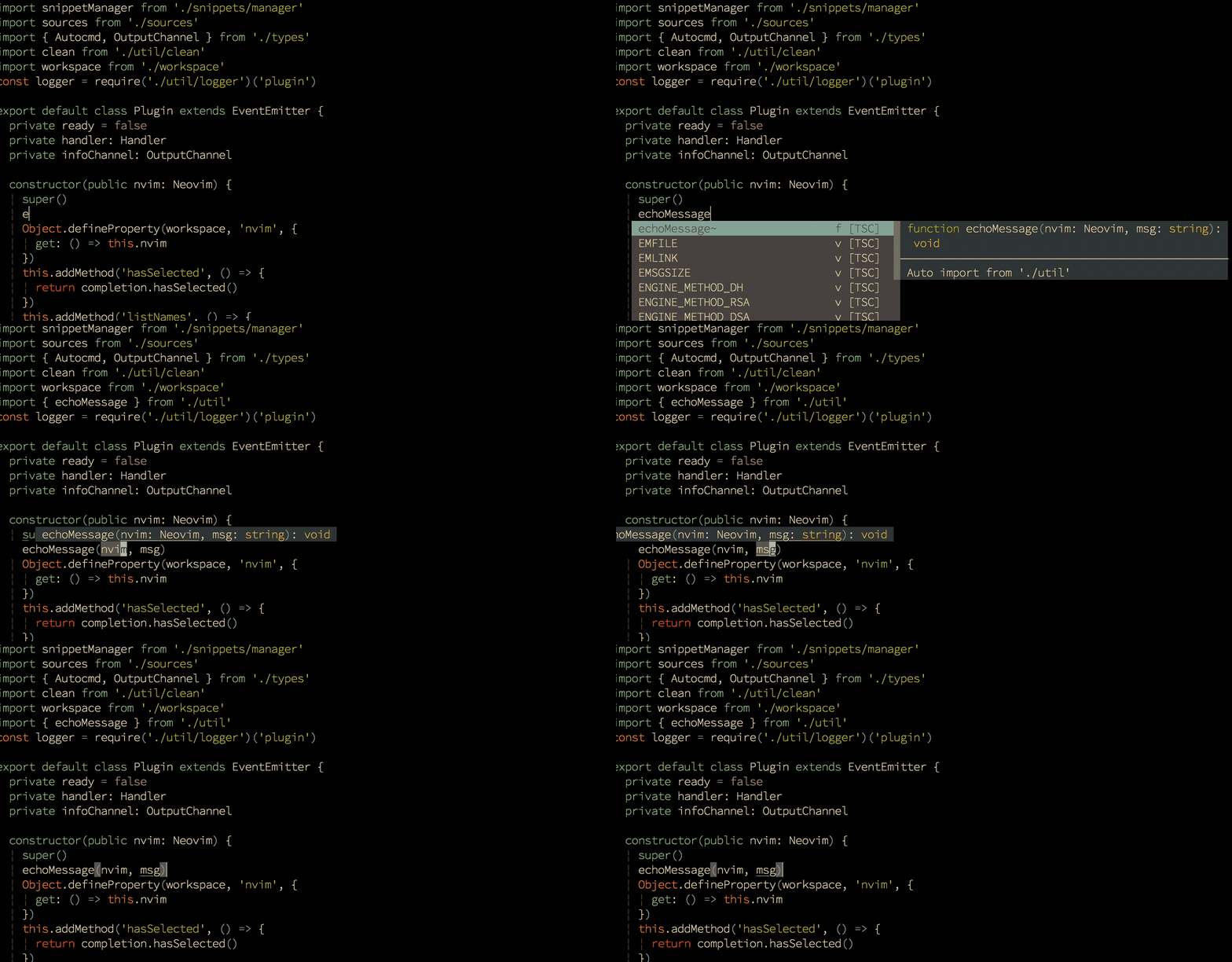
COC (AutoCompletion)
| Shortcut | Action |
|---|---|
Space y |
Get yank history list |
gd |
Go to definition |
gr |
List references |
gi |
List implementation |
gy |
Go to type definition |
Space r n |
Rename a variable |
Ultisnips
| Shortcut | Action |
|---|---|
Ctrl s |
Expand a snippet |
Ctrl s |
(in snippet) Previous Cursor position in snippet |
Ctrl b |
(in snippet) Next Cursor position in snippet |

Debugger
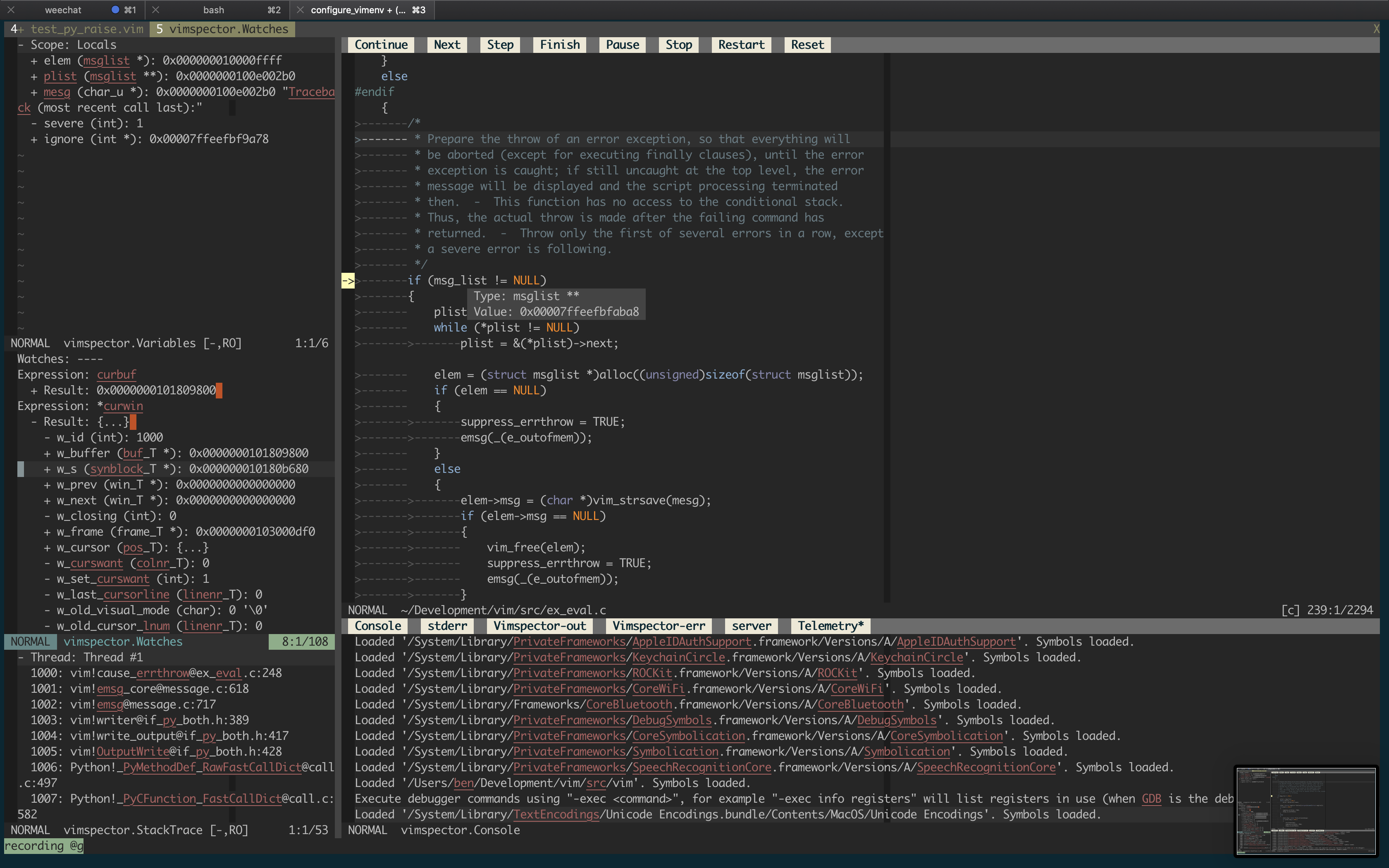
vimspector (debugger-plugin)
First of all, you need to copy the .vimspector.json config file to the root dictionary of your coding project.
| Key | Function |
|---|---|
F5 |
When debugging, continue. Otherwise start debugging. |
F3 |
Stop debugging. |
F4 |
Restart debugging with the same configuration. |
F6 |
Pause debugee. |
F9 |
Toggle line breakpoint on the current line. |
F8 |
Add a function breakpoint for the expression under cursor |
F10 |
Step Over |
F11 |
Step Into |
F12 |
Step out of current function scope |
File Navigation
coc-explorer (file browser)
| Shortcut | Action |
|---|---|
tt |
Open file browser |
? |
show help (in explorer) |
Some basic operation:
| Shortcut | Action |
|---|---|
o |
Expand file folder |
N |
Collapse file folder |
i |
Enter file folder |
q |
Exit |

rnvimr - file browser
- Make sure you have ranger installed
Press R to open Ranger (file selector)
And Within rnvimr (ranger), you can:
| Shortcut | Action |
|---|---|
Ctrl t |
Open the file in a new tab |
Ctrl x |
Split up and down with the file |
Ctrl v |
Split left and right with the file |

FZF - the fuzzy file finder
| Shortcut | Action |
|---|---|
Ctrl p |
FZF Files |
Ctrl u |
Move up 1 item |
Ctrl e |
Move down 1 item |
Ctrl w |
FZF Buffers |
Ctrl f |
FZF Files’ Content |
Ctrl h |
FZF Recent Files |
Ctrl t |
FZF Tags |

xtabline (the fancy tab line)
| Shortcut | What it creates |
|---|---|
to |
Cycle tab mode |
\p |
Show current path |

Text Editing Plugins
vim-table-mode
| Shortcut | Action |
|---|---|
SPACE t m |
Toggle table mode |
SPACE t r |
Realign table |
See :help table-mode.txt for more.
Undotree
| Shortcut | Action |
|---|---|
Shift + H |
Open Undotree |
u |
Newer Version |
e |
Older Version |
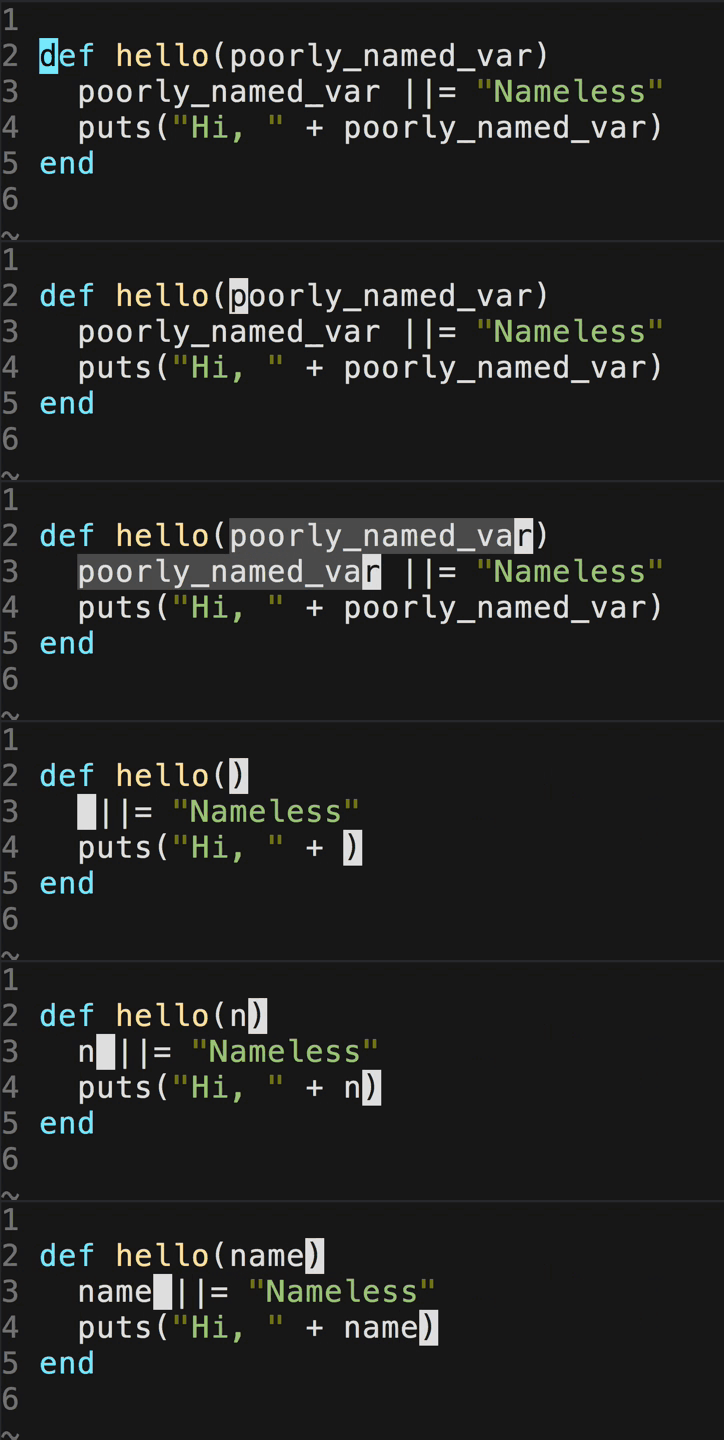
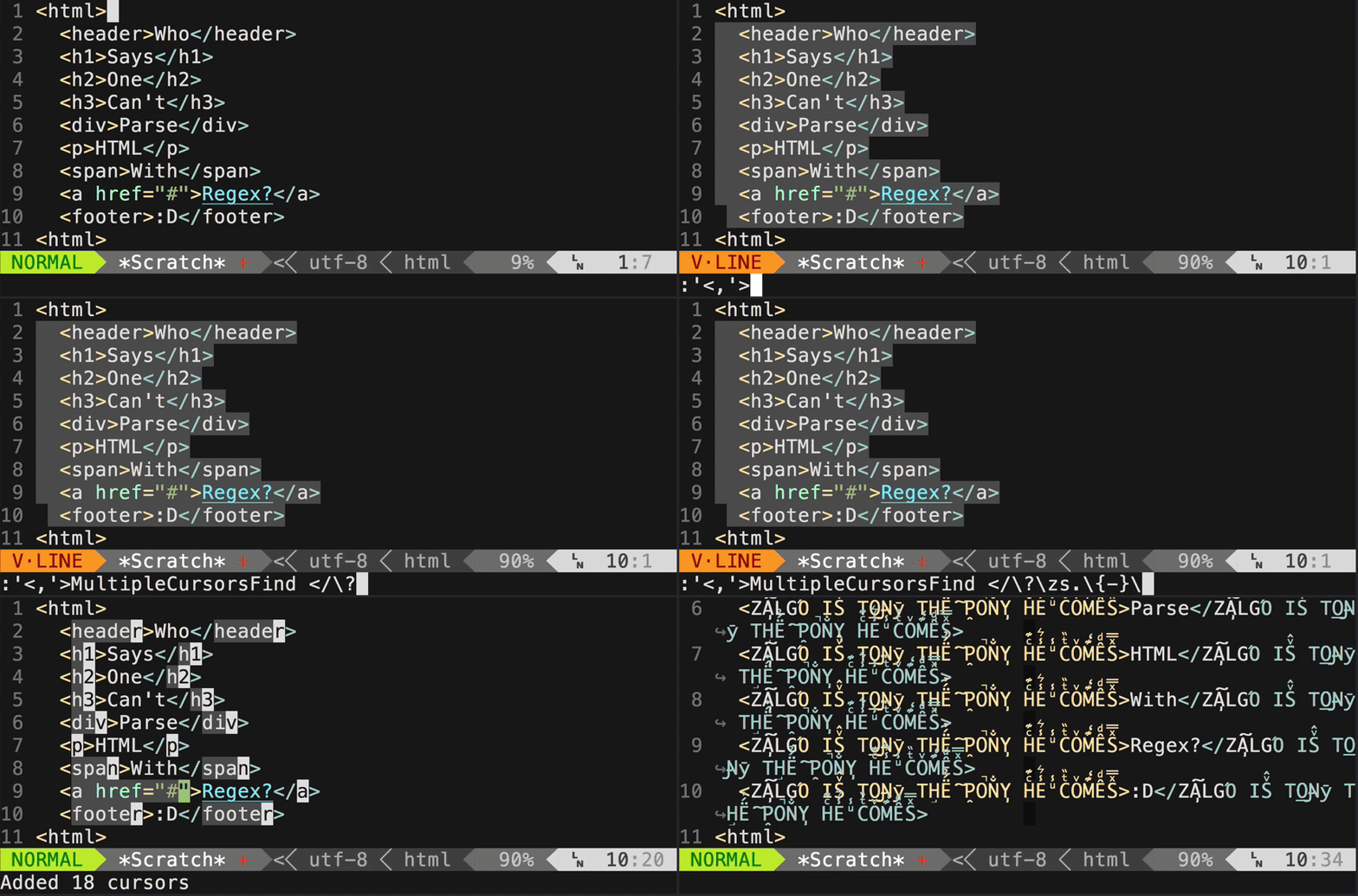
vim-visual-multi (instead of vim-multiple-cursors)
| Shortcut | Action |
|---|---|
Ctrl+k |
Select next key |
,+k |
Select All keys |
Ctrl+s |
Skip key |
Ctrl+h |
Undo |
Ctrl+r |
Redo |
Esc |
Quit mutiple cursors |
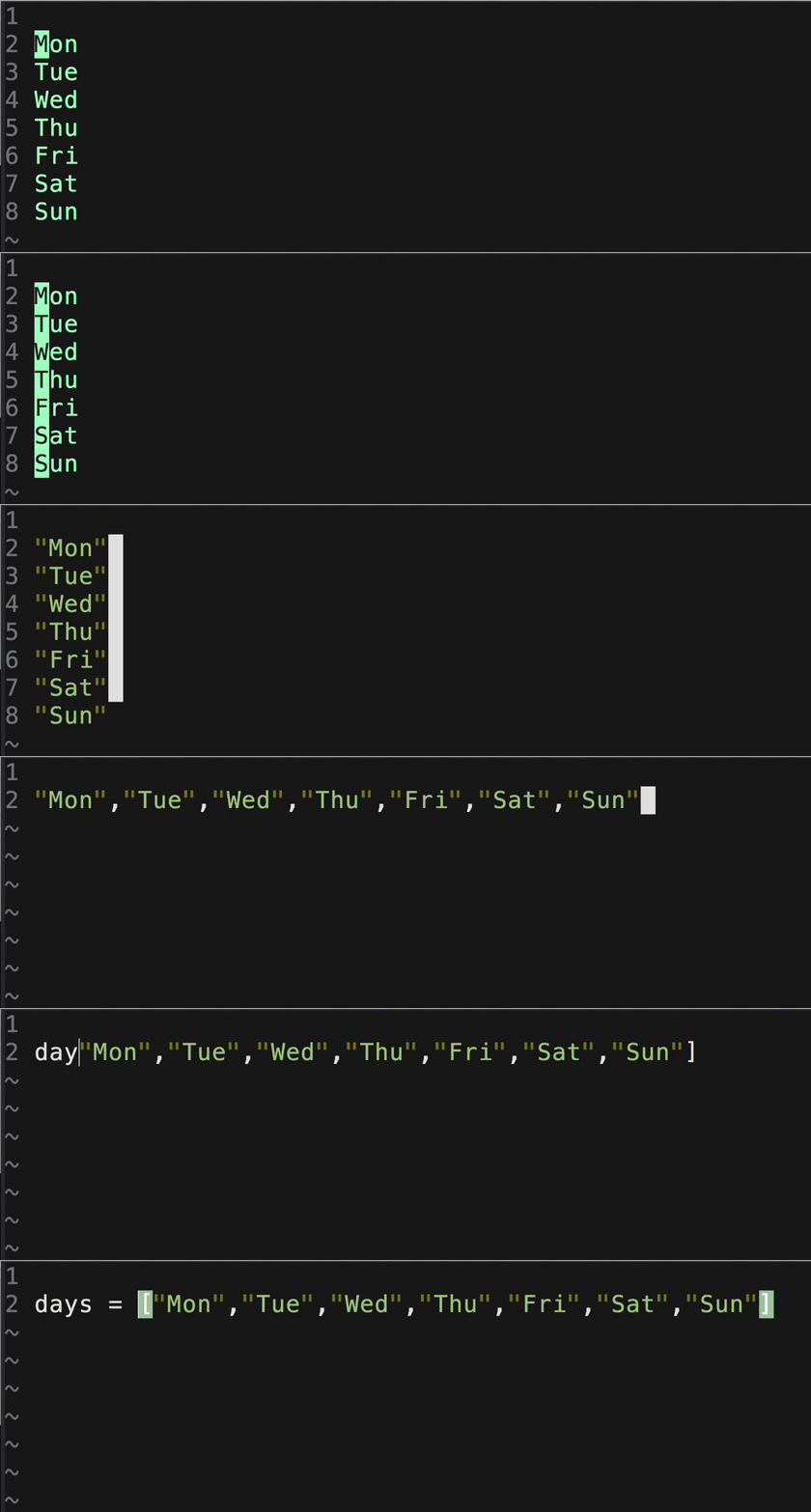
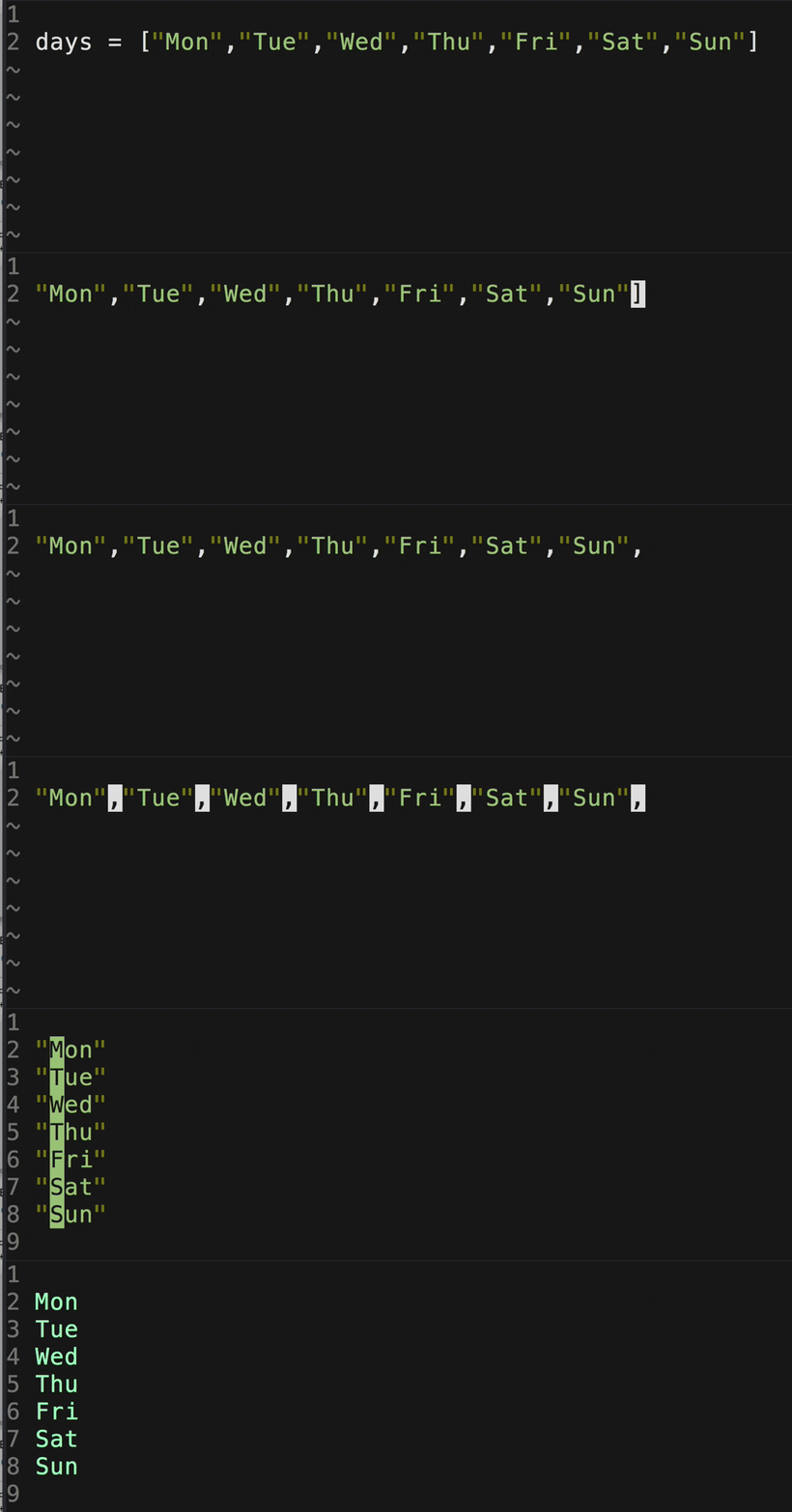
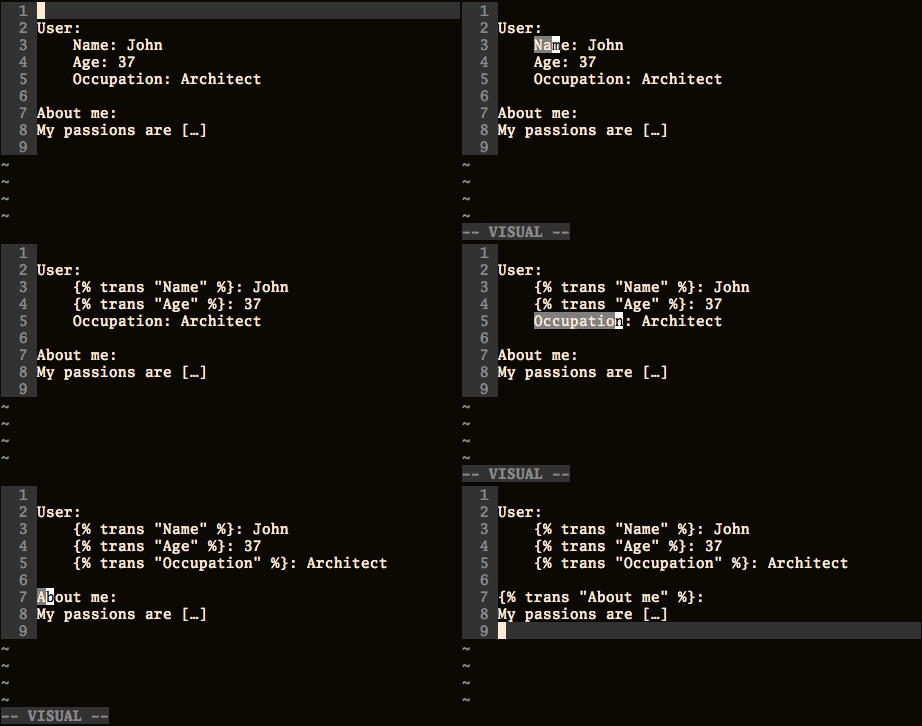
After selecting the multiple cursors, you can use u or a to switch to multiple insertion mode at the first or the last of the word. You can also use . to exit the insertion mode.
After entering the visual-multi-mode, use the default derection operator to move:
| Shortcut | Action |
|---|---|
h |
Move leftward |
l |
Move rightward |
j |
Move downward |
k |
Move upward |
vim-surround
To add surround (string -> "string"):
string |
press: ysuw':
'string' |
To change surround
'string' |
press: cs'":
"string" |
vim-subversive
New operator: s:
You can execute s<motion> to substitute the text object provided by the motion with the contents of the default register (or an explicit register if provided). For example, you could execute skw to replace the current word under the cursor with the current yank, or skp to replace the paragraph, etc.
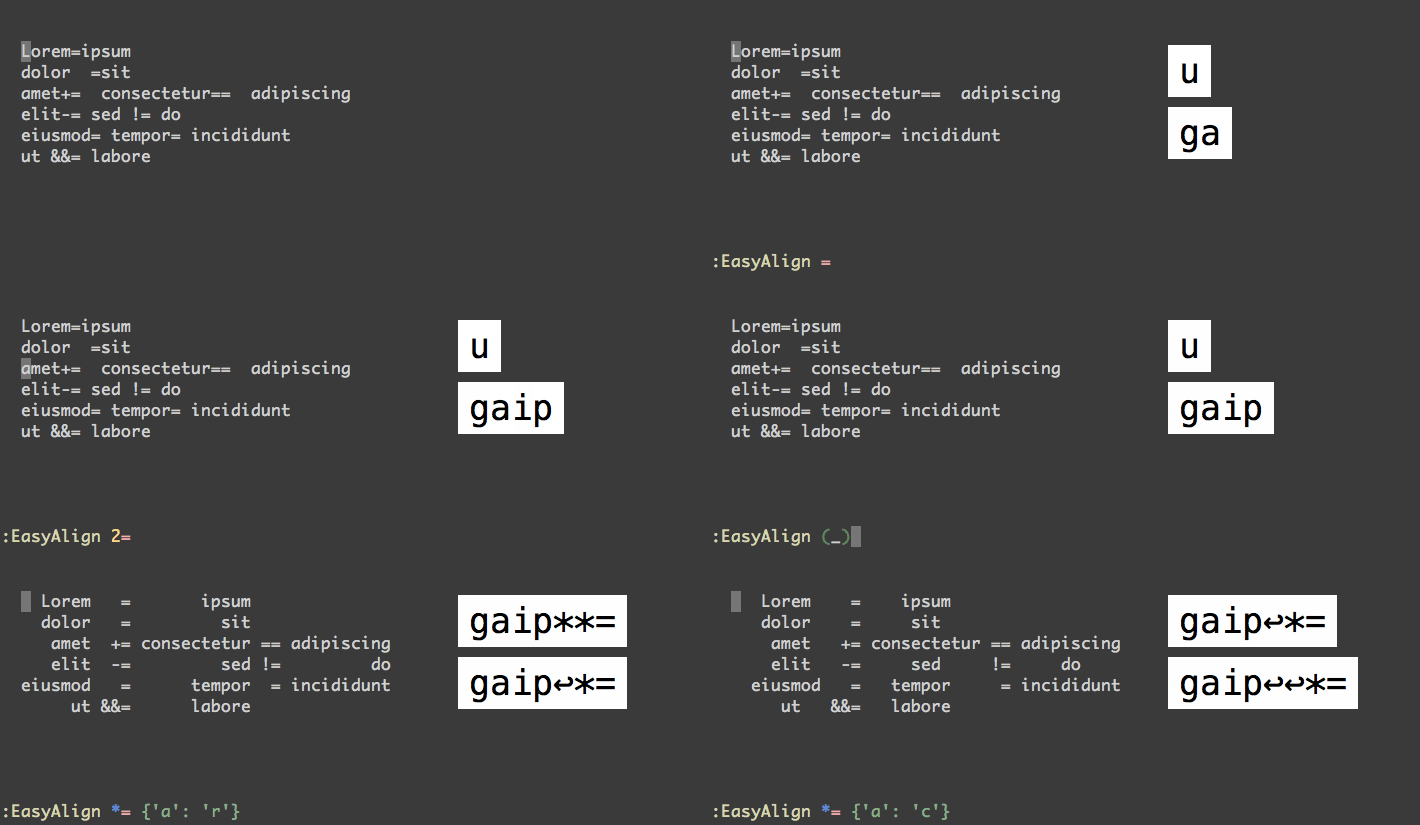
vim-easy-align
Press ga + symbol in normal or visual mode to align text based on symbol
AutoFormat
Press \ f to format code
vim-markdown-toc (generate table of contents for markdown files)
In markdown files, type :Gen then tab, you’ll see your options.

Navigation Within Buffer
vim-easy-motion
Press ' and a character jump to character (similar to Emacs’ AceJump)

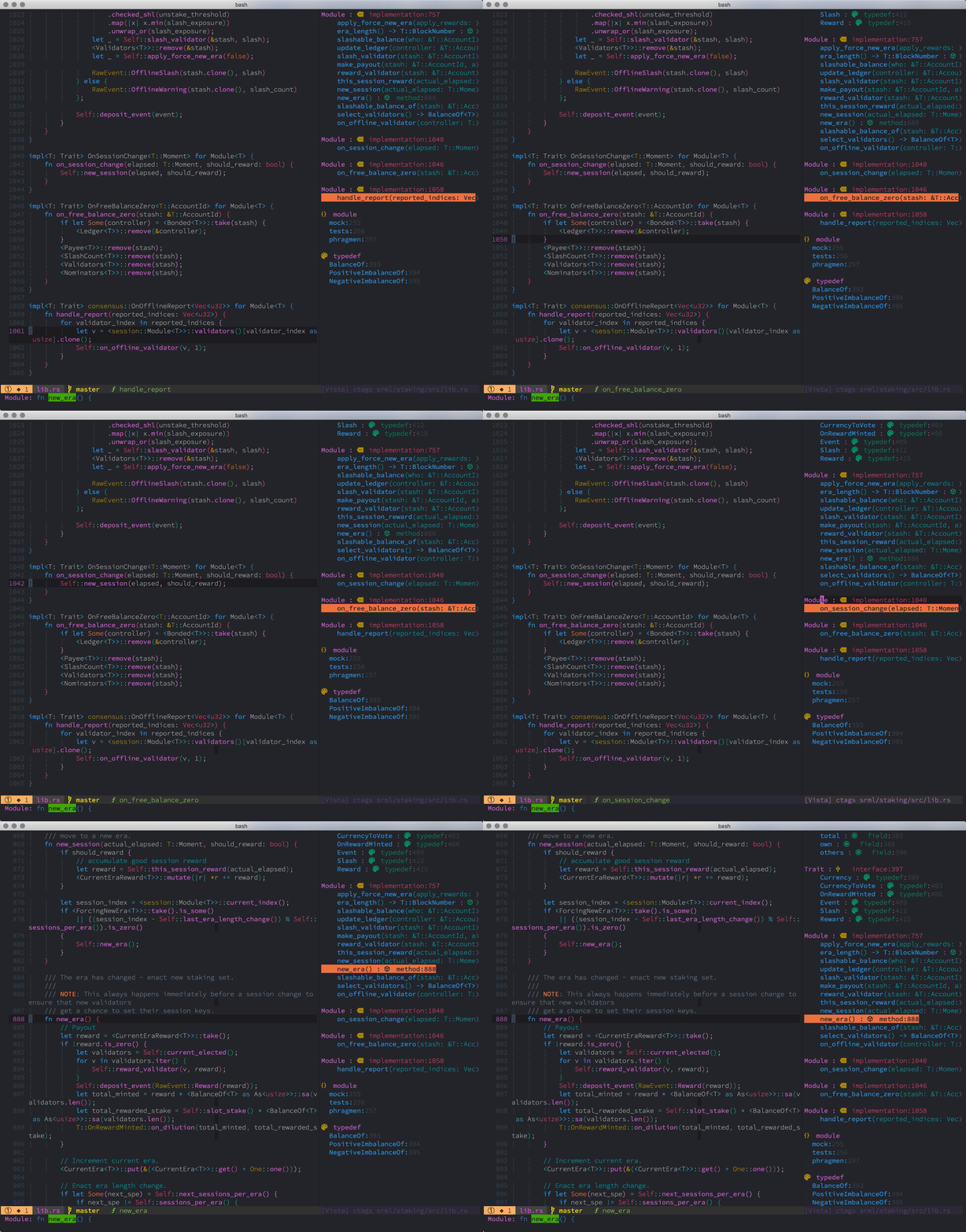
Vista.vim
Press T to toggle function and variable list
vim-signiture - Bookmarks
| Shortcut | Action |
|---|---|
m<letter> |
Add/remove mark at current line |
m/ |
List all marks |
mSPACE |
Jump to the next mark in buffer |
mt |
Add/remove mark at current line |
ma |
Add annotation at current line |
ml |
Show all bookmarks |
mi |
Next bookmark |
mn |
Previous bookmark |
mC |
Clear bookmarks |
mX |
Clear all bookmarks |
mu |
Move bookmark up a line |
me |
Move bookmark down a line |
SPC g |
Move bookmark to line… |
Find and Replace
Far.vim - find and replace
Press SPACE f r to search in cwd.

Git Related
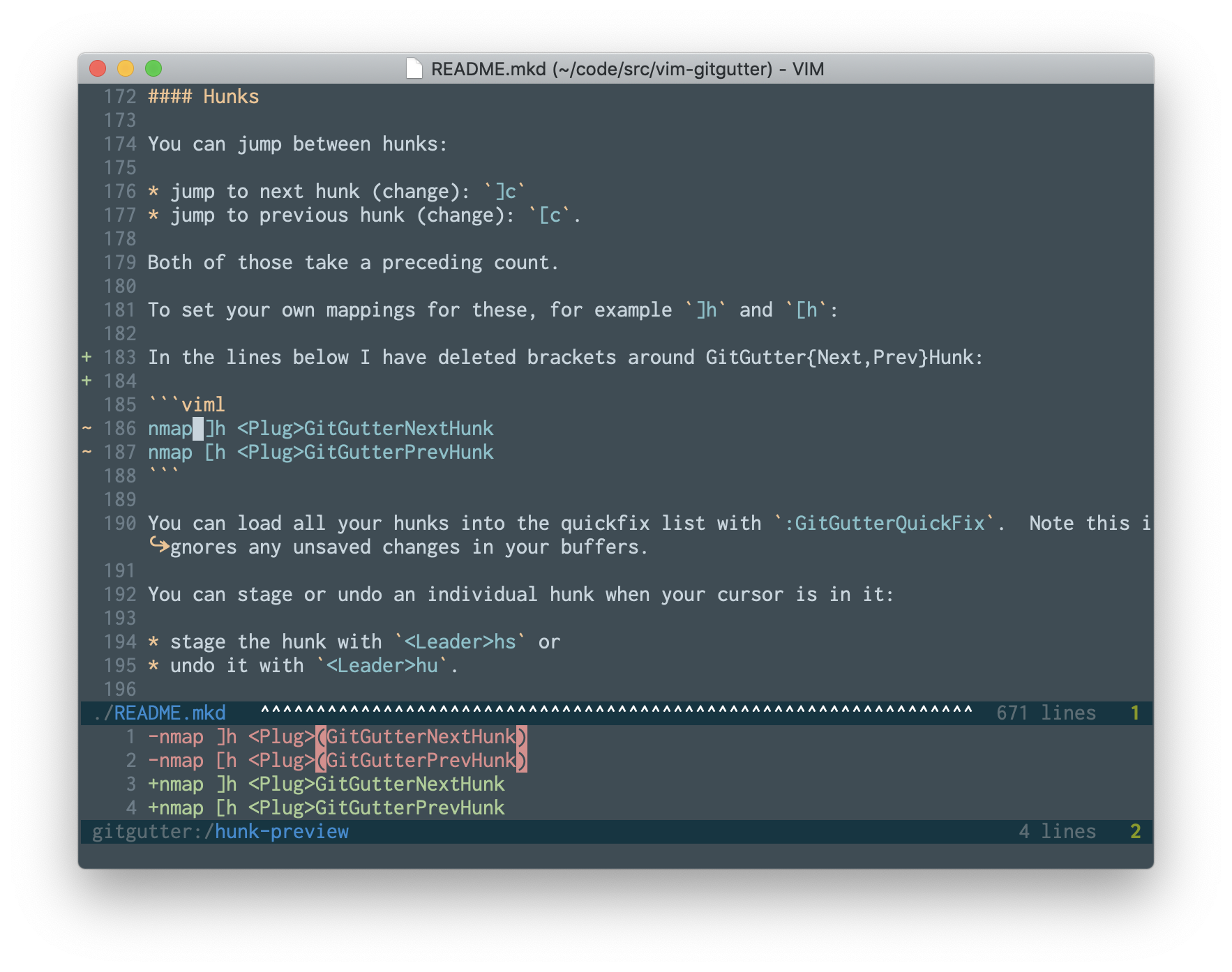
vim-gitgutter
| Shortcut | Action |
|---|---|
Z |
Show git hunk at current line |
SPACE g - |
Go to previous git hunk |
SPACE g + |
Go to next git hunk |
SPACE g f |
Fold everything except hunks |
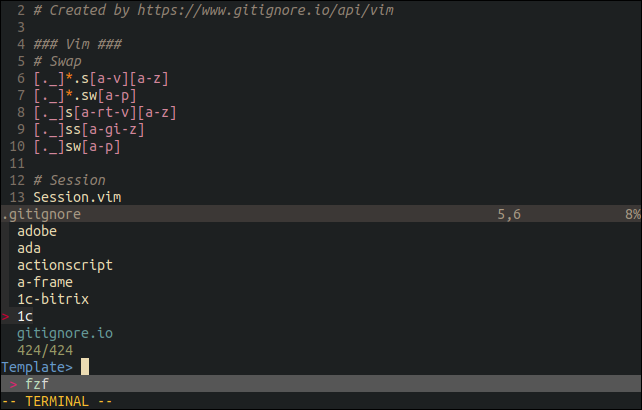
fzf-gitignore
Press Space g i to create a .gitignore file
Others
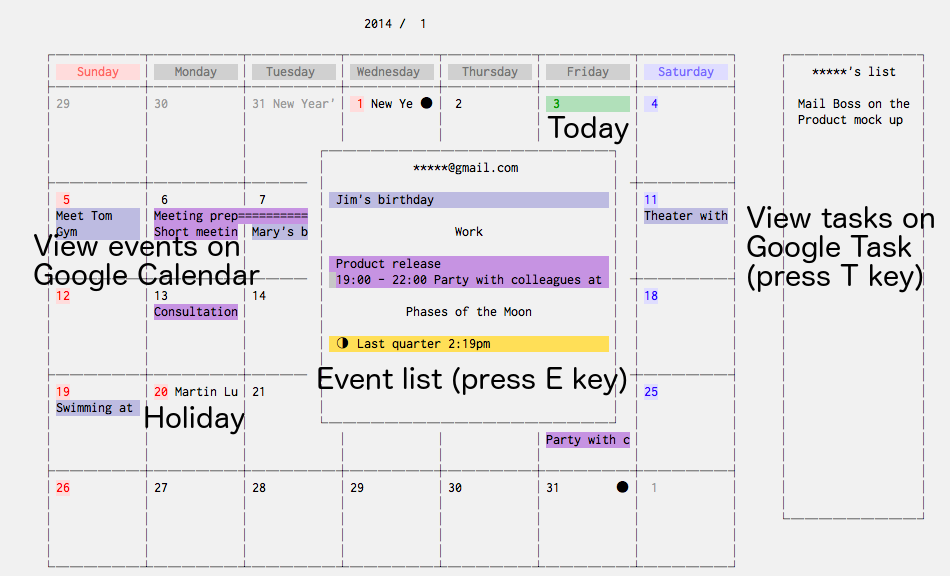
vim-calendar
| Shortcut | Action |
|---|---|
\ \ |
Show clock |
\ c |
Show calendar |
Goyo - Work without distraction
Press g y to toggle Goyo

suda.vim
Forgot to sudo vim ...? Just do :sudowrite or :sw
coc-translator
Press ts to translate word under cursor.

Custom Snippets
Markdown
In the ‘Input Mode’:
| Shortcut | What it creates |
|---|---|
,n |
— |
,b |
Bold text |
,s |
|
,i |
italic text |
,d |
code block |
,c |
big block of code |
,m |
- [ ] check mark |
,p |
picture |
,a |
link |
,1 |
# H1 |
,2 |
## H2 |
,3 |
### H3 |
,4 |
#### H4 |
,l |
——– |
,f to go to the next <++> (placeholder)
,w to go to the next <++> (placeholder) and then press Enter for you
Some Weird Stuff
Press tx and enter your text
tx Hello<Enter>
_ _ _ _ |